
How to Restore an iPhone Without a Computer in iOS 27 Using Recovery Assistant
An iPhone that freezes during startup, repeatedly shows the Apple logo or stops working after an update no longer necessarily needs a Mac or PC for recovery. With iOS 27, Apple has introduced a dedicated recovery environment that allows users to troubleshoot software problems directly on their devices. Its built-in Recovery Assistant can download repair software over Wi-Fi, while other options support wireless updates, diagnostics and device erasure. The new interface makes these tools easier to access, even when iOS cannot start normally. However, not every problem can be resolved without a computer, and choosing the wrong recovery option could result in permanent data loss. Understanding how the system works is therefore essential before attempting a repair.
How the New iOS 27 Recovery System Works
The most significant change in iOS 27 is the introduction of iOS Recovery, a separate environment that starts without loading the complete operating system. Previously, users experiencing serious startup problems often had to connect their iPhone to a computer and use Finder or the Apple Devices app to reinstall the software. Although Recovery Assistant was introduced with iOS 26, its functionality was more limited. The dedicated recovery interface in iOS 27 brings several troubleshooting tools together and allows users to access them manually. This is particularly useful when the main operating system becomes unstable or cannot reach the Lock Screen.
iOS Recovery can launch automatically if an iPhone encounters an unsuccessful update, an interrupted restoration or certain stability problems. The system first attempts to resolve the issue independently. If that process fails, the device can display the Restore Your iPhone interface, where several recovery methods are available. Users can also enter this environment deliberately, rather than waiting for a malfunction. Unlike the familiar screen displaying a cable and computer symbol, the new interface provides interactive options directly on the iPhone. The available tools address different problems, so an unsuccessful startup does not automatically mean that the entire device must be erased.
The recovery environment includes five main options: Recovery Assistant, Software Update, Diagnostics Mode, Erase All Content and Settings, and Recovery Mode. Recovery Assistant attempts to repair operating-system or stability issues, while Software Update uses another compatible Apple device to help with an update. Diagnostics Mode provides access to tests that can help identify hardware problems. The erase option removes personal information and settings, whereas traditional Recovery Mode still requires a computer. The interface also provides controls for restarting the device and changing its language. These functions do not guarantee a successful repair, but they give users a clearer choice between troubleshooting, updating and completely resetting their iPhone.
What Recovery Assistant Can Fix Without Erasing Your Data
Recovery Assistant is designed primarily for software-related startup failures. If an iPhone cannot finish loading iOS, experiences repeated crashes or encounters certain operating-system stability problems, the assistant attempts to restore normal operation by downloading a software package. The process requires a working Wi-Fi connection and, when accessed through the iOS 27 recovery interface, the device passcode. After the user selects Recovery Assistant and follows the onscreen instructions, the iPhone performs its recovery procedure. Apple states that this can take several minutes. The duration may vary depending on the problem and the connection, and the device should not be interrupted while recovery is taking place.
A key advantage of Recovery Assistant is that it attempts a software repair rather than immediately performing a factory reset. This makes it a sensible first choice when the priority is preserving photographs, messages, applications and other personal information. Nevertheless, the feature should not be considered a substitute for backups or a guarantee that every file will remain accessible. The outcome depends on the underlying failure and the recovery actions required. If the repair succeeds, the user can restart the iPhone and check whether it reaches the Lock Screen, opens applications and operates normally. Important information should be backed up as soon as the device becomes usable again.
Recovery Assistant has clear limitations. It cannot be relied upon to repair a physically damaged logic board, defective storage, a broken display or other serious hardware faults. It may also fail when the operating-system damage cannot be corrected using the available repair package. If the iPhone repeatedly returns to Recovery Assistant or remains unable to start, Apple recommends checking that the latest compatible iOS version is installed and then using traditional recovery procedures if necessary. A computer-based update or restore may still be required, followed by professional servicing if the problem continues. The main benefit of Recovery Assistant is the opportunity to attempt a less disruptive repair before considering those measures.
How to Start Recovery Assistant on an iPhone Running iOS 27
Entering the new recovery environment requires a different procedure from the traditional button combinations used for a forced restart. First, switch off the iPhone completely. If the touchscreen responds, the normal shutdown controls can be used. If the phone has frozen and cannot be switched off, a forced restart may be necessary before proceeding. Once the device is off, disconnect it from chargers, computers and other power sources. This detail matters because Apple’s procedure for manually entering iOS Recovery requires the device to be disconnected from external power. The iPhone should also have enough battery charge to complete the recovery process without shutting down unexpectedly.
Next, press and hold the side button while the iPhone starts. Do not release it when the Apple logo first appears. Continue holding until the screen displays the message Continue holding for recovery, then follow the onscreen progress until Loading recovery options appears. The device should eventually display the Restore Your iPhone interface. This screen is part of the dedicated iOS 27 recovery environment, not the ordinary Settings application. If the iPhone starts normally instead, switch it off and repeat the procedure carefully. The process is also available for compatible iPads running iPadOS 27, although those devices use the top button instead of the iPhone’s side button.
After the recovery menu appears, select Recovery Assistant to attempt to repair startup or stability problems. The system may request the device passcode and Wi-Fi access before continuing. Follow the instructions shown on the screen and allow the assistant to complete its work. Once recovery finishes, restart the iPhone and check whether it operates normally. If the device still cannot start, return to the recovery options and consider whether a software update or another troubleshooting method is appropriate. Avoid selecting Erase All Content and Settings simply because the first repair attempt was unsuccessful. Erasing the phone is a separate action with much more serious consequences for locally stored information.
Using a Nearby iPhone or iPad for Wireless Recovery
iOS 27 also includes a Software Update option that can use another iPhone or iPad to assist with recovery. This is different from Recovery Assistant, which attempts to correct problems on the affected device itself. When Software Update is selected, the iPhone restarts into a process that uses a nearby compatible device to help complete the update. Apple’s nearby-device recovery feature supports specific iPhone and iPad models, so compatibility must be checked before proceeding. Supported iPhones include the iPhone 15 Pro range, iPhone 16 range, iPhone 16e, iPhone Air and iPhone 17 models, alongside newer supported devices. The assisting device must run iOS 18 or iPadOS 18 or later.
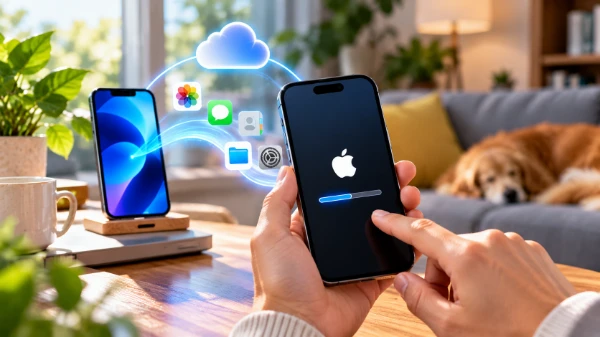
For the nearby-device recovery procedure, connect the affected iPhone to a power source and place it beside a second, unlocked iPhone or iPad that is already connected to Wi-Fi. When the assisting device displays the Restore Nearby iPhone message, tap Continue. The recovering iPhone displays a six-digit code, which must be entered on the second device to establish the connection and share network access. Follow the prompts and confirm the restoration when requested. The assisting device can be brought close again to check progress. The process does not require a Mac or Windows computer, but it does depend on a compatible second device and a suitable wireless network.
Some Wi-Fi networks are unsuitable for nearby-device recovery. Apple specifically excludes captive networks, such as connections that require signing in through a hotel or public hotspot webpage, and networks using 802.1X authentication. A standard password-protected home Wi-Fi connection is generally a more practical choice. Both devices should remain sufficiently charged, with the recovering iPhone connected to power as instructed. If the second device never displays the expected prompt, check compatibility, unlock it and confirm that Wi-Fi is working. It is also important to distinguish recovery software from personal backups: a nearby iPhone helps with the supported recovery process, but it does not automatically transfer its owner’s personal data to the malfunctioning device.
Other Recovery Options, Data Safety and Troubleshooting
The recovery screen in iOS 27 offers additional tools for situations in which Recovery Assistant is unsuitable or unsuccessful. Diagnostics Mode allows the device to restart into a diagnostic environment, where Apple Support or authorised service personnel can perform certain checks and calibrations. Users may also have access to self-service diagnostic tests. This can help when an apparent software problem may actually involve the battery, display or another physical component. Diagnostics do not automatically repair damaged hardware, however. If the iPhone has been dropped, exposed to liquid or has developed persistent hardware symptoms, a diagnostic result should be considered alongside a professional inspection.
Erase All Content and Settings is a significantly more destructive option. It allows the iPhone to be erased without connecting to a computer, but it removes personal data from the device. Apple states that the Apple Account remains associated with the device during this particular recovery procedure, so erasing should not be mistaken for removing Activation Lock or transferring ownership. The option requires the device passcode. Before using it, consider whether a recent iCloud or computer backup exists and whether essential information has already been synchronised elsewhere. Without a usable backup or synchronised copy, erased local photographs, documents, messages and application data may be impossible to retrieve.
Traditional Recovery Mode remains available within the new interface for problems requiring computer-based intervention. Selecting it restarts the iPhone into the conventional recovery process, where a Mac or Windows PC is needed. On a Mac, Finder manages the procedure; on Windows, Apple provides the Apple Devices application. Depending on the situation, the computer may offer an Update option that attempts to reinstall iOS while retaining personal data, or a Restore option that erases the device. When preserving information matters, the less destructive update procedure is generally preferable to try first when offered. A computer restore should be treated as a last resort unless there is a specific reason to reset the device completely.
What to Do When Recovery Assistant Does Not Work
If Recovery Assistant cannot complete its repair, begin by identifying the exact point of failure. An inability to connect to Wi-Fi calls for a different response from repeated startup crashes or an error displayed during software recovery. Check the available network, reconnect if necessary and avoid connections that require a browser-based sign-in. If the device has insufficient battery charge, recharge it before attempting another recovery procedure. When the assistant finishes but the original problem remains, restart the iPhone and assess whether the failure is reproducible. Repeated unsuccessful attempts without changing the circumstances rarely provide useful information and may delay a more appropriate recovery method.
If the phone can start normally after an unsuccessful recovery attempt, check Settings, General and Software Update for an available compatible iOS release. Installing an update may correct a fault that affects the existing installation, although it cannot solve every stability problem. Before updating, create a current backup whenever possible. If the iPhone remains stuck in a recovery loop, the Software Update option involving a nearby compatible device may be worth considering. Where that procedure is unavailable or unsuccessful, use a computer and follow Apple’s official recovery instructions. Choose Update rather than Restore when the option is offered and retaining existing data remains the priority.
Professional assistance becomes appropriate when the iPhone continues to fail after the supported software recovery methods, cannot maintain a stable connection, unexpectedly powers off during troubleshooting or shows signs of physical damage. An Apple Store or Apple Authorised Service Provider can assess whether hardware servicing is necessary. The central improvement in iOS 27 is not that computers have become unnecessary in every recovery situation, but that users now have several practical options before reaching that stage. Recovery Assistant offers an initial repair attempt, nearby-device recovery supports certain software updates, and diagnostics can help clarify the cause of a malfunction. Selecting the least destructive suitable option gives users the best opportunity to restore normal operation while protecting their information.