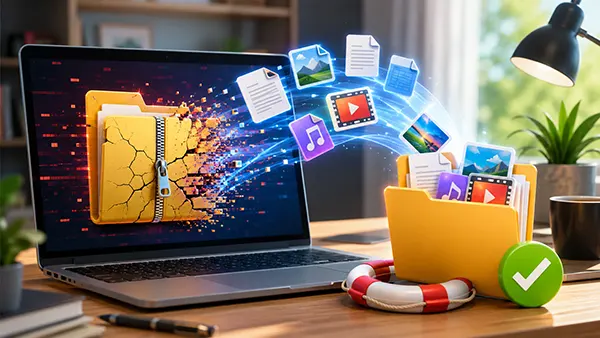
What to Do If an External Drive Requests Formatting: A Safe Algorithm Before File Recovery
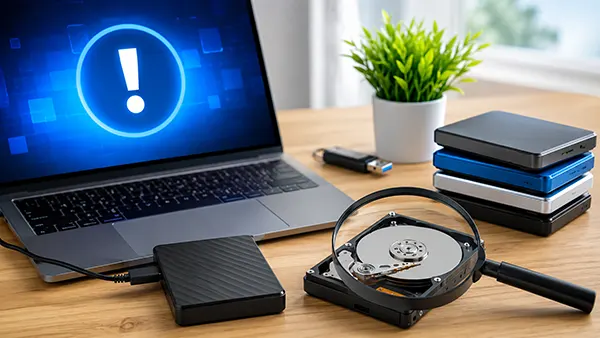
Few storage problems create as much panic as a message saying that an external drive must be formatted before it can be used. In many cases, the files are still physically present on the device, but the operating system can no longer read the file system correctly. Acting too quickly often makes the situation worse. Formatting the drive, installing recovery tools directly onto it, or repeatedly reconnecting damaged hardware may overwrite recoverable data. In 2026, modern SSDs, portable HDDs and USB drives remain vulnerable to file system corruption caused by sudden power loss, unsafe removal, firmware faults, failing sectors and malware. A careful sequence of actions significantly increases the chances of recovering documents, photos, videos and backups without permanent damage.
Why an External Drive Suddenly Requests Formatting
The most common reason for the formatting request is corruption of the file system structure rather than immediate physical destruction of the drive itself. Windows may display messages such as “You need to format the disk before you can use it”, while macOS may report that the disk is unreadable. These warnings usually appear when the operating system cannot correctly interpret partition tables, boot records or directory structures.
Unexpected cable removal remains one of the leading causes of corruption. Disconnecting a drive while files are being copied can interrupt write operations and damage allocation tables. The same issue may occur after a sudden power outage, laptop battery failure or system crash during file transfer. Portable SSDs connected through unstable USB hubs are especially sensitive to interrupted operations.
Another serious factor is hardware degradation. Traditional HDDs may develop bad sectors over time, while SSDs can suffer from controller faults or exhausted memory cells. In some situations, the drive itself is functional, but the enclosure, USB bridge or cable is defective. Before assuming the worst, it is important to test the device using another cable, another USB port and preferably another computer.
Signs That the Drive May Still Be Recoverable
If the drive appears in Disk Management on Windows or Disk Utility on macOS with the correct storage capacity, there is often a realistic chance of recovery. A corrupted file system does not automatically mean that the files are lost. Many professional recovery cases begin with drives that initially requested formatting.
Strange behaviour such as folders disappearing, filenames becoming unreadable or transfer speeds dropping sharply may indicate logical corruption rather than complete hardware failure. Clicking sounds, repeated disconnects or inability to detect the drive at all are more serious symptoms that may point to mechanical or controller damage.
It is also important to observe whether the drive becomes unusually hot or repeatedly reconnects itself. These signs can suggest electrical instability or failing internal components. Continuing to use a damaged device under these conditions may worsen the situation and reduce recovery success.
The Safe First Steps Before Attempting Recovery
The first rule is simple: never format the drive immediately after the warning appears. Operating systems often encourage formatting as the default solution, but this process can overwrite critical file system metadata. Even a “quick format” changes important structures required for professional recovery tools.
The second rule is to avoid writing new data to the affected device. Do not save recovery software onto the same drive and do not attempt random repair operations found in online forums. Many free utilities advertise instant fixes but may permanently alter damaged sectors or partition information.
A safer approach begins with diagnostics. Check whether the drive is recognised in the BIOS or operating system utilities. If possible, create a sector-by-sector image of the device before performing any repair attempts. In professional environments, disk imaging remains standard practice because it preserves the original state of the storage medium.
When to Use Recovery Software and When to Stop
If the drive is stable and does not produce unusual noises, reliable recovery software may help retrieve files from damaged partitions. In 2026, widely used tools such as R-Studio, UFS Explorer, EaseUS Data Recovery Wizard and Disk Drill continue to support advanced recovery scenarios for NTFS, exFAT, APFS and EXT file systems.
However, software recovery is not always safe. If the drive disconnects during scanning, makes repeated clicking sounds or causes system freezes, continuing the process may increase physical damage. Mechanical HDD failures often become worse under prolonged read attempts because damaged heads can scratch platter surfaces.
Professional data recovery laboratories should be considered when the files are highly valuable or irreplaceable. Family photos, business archives, legal records and financial documents are usually worth protecting through specialised recovery procedures rather than risky home experiments. Modern recovery centres use cleanroom environments and hardware imaging equipment unavailable to ordinary users.
How to Prevent External Drive Corruption in the Future
Regular backups remain the most effective protection against data loss. Following the 3-2-1 backup principle is still recommended in 2026: keep three copies of important files, store them on two different media types and maintain one copy outside the primary location. Cloud storage combined with local encrypted backups offers strong protection against both hardware failure and ransomware.
Safe device removal also matters more than many users realise. Although modern operating systems handle cached writes more efficiently than older versions, disconnecting a drive during active transfers can still damage the file structure. Waiting for transfer operations to complete before unplugging the device significantly reduces risk.
Environmental conditions should not be ignored either. External drives are vulnerable to heat, moisture, vibration and accidental impacts. Portable SSDs are more resistant to shocks than traditional HDDs, but they are not immune to controller failure or electrical instability caused by low-quality adapters and cables.
Practical Storage Habits That Reduce Data Loss Risks
Monitoring drive health can help identify problems before serious corruption appears. SMART monitoring utilities such as CrystalDiskInfo or DriveDx can display warning signs including reallocated sectors, temperature spikes and abnormal error rates. Early detection allows users to replace unstable drives before failure occurs.
Using high-quality USB cables and avoiding cheap multi-port hubs also improves storage stability. Power fluctuations and unstable connections remain common reasons for interrupted transfers, especially when large video archives or backups are involved. Drives that require additional power should always use their original adapters where possible.
Finally, periodic backup verification is essential. Many users assume their backups are functioning correctly without checking file integrity or restoration capability. A backup that cannot be restored is often discovered only after the original drive has already failed. Testing backups several times per year remains one of the most practical habits for long-term data protection.