Why Modern Laptops Overheat Even When Idle: Real Causes and Fixes (2026)
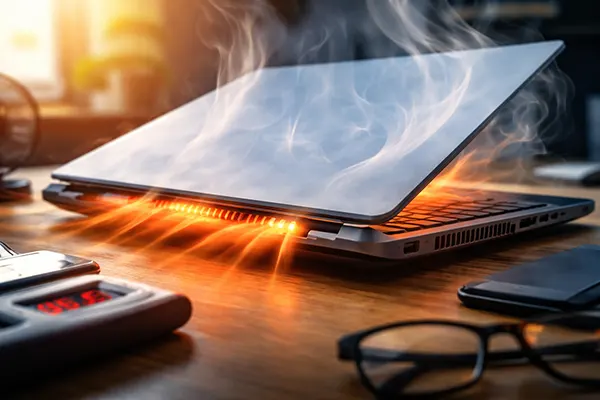
If your laptop feels hot while you are only browsing, watching a video, or even doing nothing at all, you are not imagining it. In 2026 this is one of the most common complaints with thin-and-light machines, gaming notebooks, and business ultrabooks alike. The tricky part is that “idle” on a modern system rarely means the CPU and GPU are truly resting.
Hidden workload: why “idle” is rarely idle anymore
One of the biggest reasons laptops run warm without obvious activity is background software load. Modern operating systems constantly do tasks such as indexing files, scanning for malware, syncing cloud folders, analysing photos, checking updates, and keeping apps ready for instant launch. Even small repeated bursts of CPU activity can push temperatures up, especially in compact chassis with limited cooling headroom.
Browsers also play a major role. A single tab with an animated advert, a video preview, or a poorly optimised script can keep the processor awake. Communication apps (Teams, Slack, Discord), antivirus tools, and backup services may run scheduled checks. You might see “0–3% CPU” in Task Manager, but if it spikes every second, the cooling system has to react constantly, which keeps heat and fan speed elevated.
Another factor in 2026 laptops is always-on connectivity and background services. Wi-Fi chipsets, Bluetooth devices, update services, and device sensors may remain active even while you are not working. These tasks are small individually, but together they can prevent the system from reaching truly low-power idle states.
How to confirm it’s software, not a hardware fault
Start by checking real-time workload properly. In Windows, open Task Manager and watch CPU frequency as well as CPU percentage. If the processor stays at a high clock speed while “idle”, it will generate heat even with minimal utilisation.
Next, use a monitoring tool that shows package power (CPU watts) and temperatures. A CPU drawing around 8–15 watts continuously on the desktop is often a sign of background processes, an aggressive power plan, or constant short activity spikes. Also check GPU activity, because some apps can keep the graphics subsystem awake silently.
To isolate the cause, reboot and test in a clean startup state: disable unnecessary startup applications, pause cloud sync temporarily, and observe temperatures after 10 minutes. If heat drops noticeably, the problem is usually software behaviour or system settings rather than failing fans or a cooling defect.
Thermal design limits: thin laptops, shared heatpipes, and modern chips
Many 2026 laptops are designed around performance bursts rather than continuous cool operation. Manufacturers prioritise slim bodies, larger batteries, and brighter screens. That leaves less space for airflow and smaller cooling components. Even when the laptop is not under load, internal heat can accumulate because the chassis cannot disperse it quickly enough.
Another common design feature is shared cooling. In many notebooks, the CPU, GPU, and sometimes the SSD share the same heatpipes and radiators. If one component warms up — for example, the SSD during background writes or the GPU due to browser acceleration — it can raise overall temperatures and make the chassis feel hotter than expected.
Modern processors also use opportunistic boosting. Many laptops ship with firmware tuned for responsiveness: the CPU boosts instantly, and the fan curve often delays spin-up to remain quiet. The result is a warm body and short temperature peaks even during very light use.
What you can change without losing performance
Begin with power settings. In Windows, set the power mode to Balanced for daily work instead of Best Performance. On many laptops this reduces idle heat by limiting aggressive boosting while keeping the system fast enough for typical tasks.
If you want a stronger change, cap the maximum processor state to 99% to disable turbo boost. This is a simple method that often lowers temperatures and fan noise significantly, especially in thin laptops. You can also reduce the minimum processor state so the CPU can enter deeper idle modes more easily.
Also review GPU mode settings. If your laptop has both integrated and discrete graphics, make sure it switches to integrated graphics for light work. A discrete GPU staying active in the background can add constant heat, even if you are only browsing or writing documents.
Physical causes: airflow, dust, thermal paste, and battery heat
When settings and software are not the main issue, physical factors often explain idle overheating. The most common is restricted airflow. If the laptop is used on a soft surface such as a bed, sofa, or even thick clothing, the intake vents can be blocked. Thin designs rely on clear bottom intake, so even partial blockage can cause heat build-up quickly.
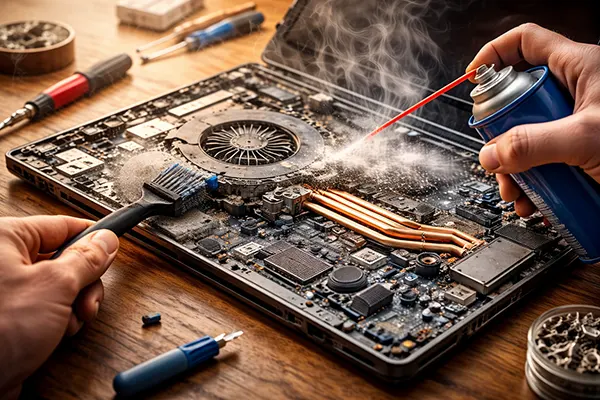
Dust is still a major issue, particularly for laptops used in homes with pets or in cities with higher air pollution. A thin layer of dust on the heatsink fins reduces heat transfer and airflow. The laptop may remain relatively quiet yet feel unusually warm because it cannot move enough air through the radiator.
Thermal paste and thermal pads also degrade over time. After roughly 18–36 months, many laptops run hotter because the paste dries or spreads unevenly. Battery heat is another overlooked source: charging generates warmth, and in some designs the battery sits close to the palm rest or under the keyboard, making the laptop feel hot even at low CPU load.
Practical maintenance that actually works
Start with airflow improvements. Elevate the rear of the laptop slightly to increase intake space. A small stand can reduce temperatures without any technical work, especially in devices with bottom ventilation.
If the laptop is over a year old and temperatures are rising, consider cleaning the fans and heatsinks. For some models this is simple; for others it requires removing the bottom cover. If you are not confident opening the device, a service shop can clean it safely. Avoid blasting compressed air into the exhaust without securing the fan, as overspinning can damage fan bearings.
When overheating continues despite cleaning, a repaste may be required. The goal is not to chase unrealistically low temperatures, but to restore normal behaviour: lower idle warmth, quieter fans, and fewer performance drops under load. If you also notice battery swelling, unusual heat near the battery area, or sudden battery drain while idle, stop using the laptop and have it checked immediately, as battery faults can create dangerous heat.