
External Drive Requests Formatting: How to Safely Recover Data First
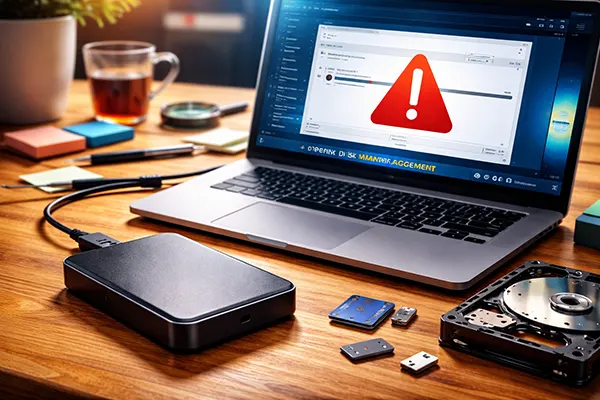
When an external drive suddenly asks to be formatted, it often signals a file system issue rather than immediate data loss. Acting too quickly can permanently erase valuable files. In 2026, data recovery tools and methods have improved, but the core principle remains the same: do not format the drive before attempting recovery. This guide explains what causes the issue, how to protect your data, and which practical steps can help restore access safely.
Why an External Drive Asks for Formatting
In most cases, the message about formatting appears when the operating system cannot read the file system structure. This may happen due to improper ejection, sudden power loss, or interruptions during file transfer. Even modern SSD-based external drives are vulnerable to logical errors despite having no moving parts.
Another common cause is file system corruption. For example, drives formatted in NTFS, exFAT or APFS may become unreadable if metadata tables are damaged. This does not mean the files are gone; it simply means the system cannot interpret them correctly.
Hardware issues also play a role. Damaged USB cables, unstable ports, or failing controllers can trigger incorrect formatting prompts. Before assuming the worst, it is important to rule out connection problems by testing the drive on another device.
What Happens If You Format Immediately
Formatting rewrites the file system structure, which makes previous data harder to recover. A quick format does not erase files physically, but it removes references to them, complicating recovery processes significantly.
Full formatting is even more destructive, as it may overwrite sectors entirely depending on the system and settings. In such cases, professional recovery becomes expensive and sometimes impossible.
For this reason, the safest approach is to avoid any write operations on the drive until recovery attempts are completed. Even copying new files can overwrite recoverable data.
Safe Steps to Recover Data Before Formatting
The first step is to stop using the drive immediately. Disconnect it safely and avoid repeated attempts to open it, as each attempt may trigger background write operations.
Next, connect the drive to a different computer or operating system. Sometimes Windows, macOS, or Linux may interpret the file system differently and allow partial access to files.
Use reliable data recovery software such as R-Studio, Disk Drill, or EaseUS Data Recovery Wizard. As of 2026, these tools support advanced scanning algorithms capable of reconstructing file structures even after severe corruption.
How to Use Recovery Tools Correctly
Always install recovery software on a separate drive, not on the affected external device. This prevents accidental overwriting of data.
Run a deep scan instead of a quick scan. While it takes longer, it increases the chances of recovering complete file structures, including folders and original names.
Save recovered files to a different storage device. Writing them back to the same external drive risks overwriting other recoverable data that has not yet been scanned.

When to Consider Professional Data Recovery
If the drive makes unusual noises, disconnects randomly, or is not detected at all, the issue may be physical rather than logical. In such cases, software tools are unlikely to help.
Professional recovery services use specialised equipment, including cleanroom environments, to access damaged storage components. This is particularly relevant for HDDs with mechanical failures or SSDs with controller issues.
Although professional recovery can be costly, it may be the only option for critical data such as business documents, backups, or personal archives that cannot be recreated.
How to Prevent Similar Issues in the Future
Always use the “safe eject” option before disconnecting external drives. This ensures that all write operations are completed and reduces the risk of corruption.
Maintain regular backups using at least two different storage solutions, such as cloud storage and a secondary external drive. This approach minimises data loss risks.
Check drive health periodically using diagnostic tools. Monitoring SMART data and running file system checks can help detect early signs of failure before serious issues occur.