
Messenger Hacked or Unknown Device Connected: A 15-Minute Session Check Guide for WhatsApp, Telegram and Signal
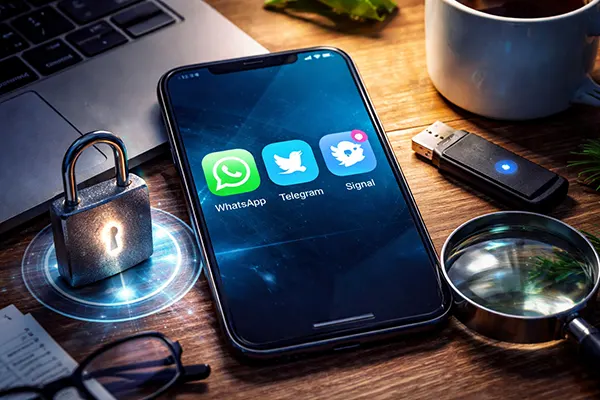
Messaging apps now store personal conversations, work discussions, verification codes and even payment confirmations. Because of that, unauthorised access to a messenger account can quickly turn into a privacy and security problem. In many cases attackers do not immediately change the password or block the owner. Instead, they connect another device and silently monitor conversations. Fortunately, most modern messengers allow users to see active sessions and remove suspicious devices within minutes. A quick check across WhatsApp, Telegram and Signal can reveal whether someone else is connected to your account and help you secure it before any damage occurs.
How to Check Active Sessions in WhatsApp, Telegram and Signal
Most messenger compromises involve additional sessions rather than full account takeover. Attackers link another device using QR login or confirmation codes. Because of this, the first step in any security check is reviewing the list of connected devices. All three major messengers provide a section where these sessions are visible.
In WhatsApp, open the application and go to “Linked Devices”. This menu shows every browser or computer connected to the account through WhatsApp Web or desktop software. Each entry displays the device type, last activity time and operating system. If something looks unfamiliar, you can log out from that session directly from the list.
Telegram stores session data under “Settings → Devices”. Here you will see active sessions with details such as device model, IP region and last connection time. Telegram allows remote termination of any session instantly. Signal offers a similar function in “Settings → Linked Devices”, though it normally allows fewer simultaneous connections and displays the linked desktop device clearly.
What Information Active Session Lists Actually Show
The session list usually contains several indicators that help identify suspicious access. One of the most useful is the last activity timestamp. If a device shows activity while you were not using the messenger, that session deserves attention.
Device type is another important clue. For example, a Telegram session may show “Windows Desktop”, “macOS”, or “Chrome browser”. If you only use an Android phone but see a Linux desktop connection, it may indicate someone scanned your login QR code.
Some messengers also show approximate geographic location derived from the IP address. The data is not always precise, but if a session appears from another country or region where you have never logged in, it is a strong signal that the account may be compromised.
Typical Signs That a Messenger Account May Be Compromised
A linked device is not always the first sign of trouble. Often the compromise begins with suspicious login attempts or verification requests. For instance, receiving multiple login codes by SMS or in-app notifications without initiating them can indicate someone is trying to access the account.
Another warning sign is messages marked as “read” when you have not opened them. Attackers who monitor chats through an additional device may unintentionally reveal their presence this way. Some users also notice conversations forwarded automatically to unknown contacts.
Changes to security settings can also indicate interference. If two-step verification suddenly becomes disabled, recovery email addresses change, or security notifications appear without explanation, it is wise to review all active sessions immediately.
Less Obvious Indicators Many Users Overlook
Some compromises remain unnoticed because attackers avoid obvious actions. Instead of sending messages, they quietly collect information such as phone numbers, personal photos or authentication codes shared in chats.
Battery usage and background activity may also provide hints. If a messenger consumes significantly more battery or data traffic than usual, it could be synchronising messages with another device continuously.
Unusual login alerts from email providers or device security systems can also point to messenger access attempts. For example, Google or Apple security notifications sometimes appear when a messenger session is opened on a new device.

What to Do Immediately: A 15-Minute Response Plan
If you discover an unfamiliar session, act quickly but methodically. The first step is logging out of all suspicious devices. WhatsApp allows a “Log out from all devices” option, while Telegram and Signal let you terminate individual sessions. Removing the connection stops the attacker’s access immediately.
Next, strengthen account protection. Enable two-step verification in the messenger settings if it is not already active. Telegram supports a password-based second factor, while WhatsApp provides a six-digit PIN and optional email recovery address. Signal relies on registration lock to prevent account re-registration.
After securing the messenger account, review the security of the main device. Run a malware scan, install operating system updates and check that screen lock protection is enabled. Many compromises begin with physical access to an unlocked phone or malicious software installed from unknown sources.
Additional Steps to Prevent Future Messenger Intrusions
Once immediate risks are resolved, it is worth reviewing broader digital hygiene. Avoid scanning login QR codes on public computers or shared devices, as these can easily retain active sessions after you leave.
Be cautious with messages asking for verification codes. Social engineering attacks often trick users into sharing login codes received by SMS or inside the messenger itself. Legitimate services never request those codes through chat.
Finally, enable security notifications where available. Telegram, WhatsApp and Signal all provide alerts when a new device connects. With these notifications active, any unexpected login attempt becomes visible immediately, allowing you to react before an attacker gains prolonged access.