
Home NAS & RAID (Synology/QNAP/TrueNAS): recovering deleted data and a degraded array without risky moves (2026)
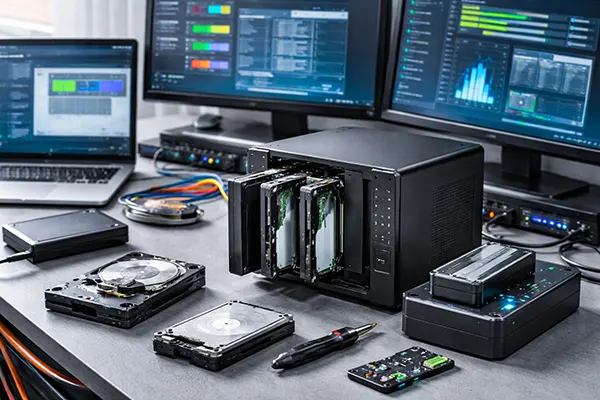
A home NAS feels “set and forget” right up to the moment a disk drops out, the volume shows as degraded, or someone deletes the wrong shared folder. The most common way people turn a recoverable situation into a disaster is by doing something irreversible too early: rebuilding onto the wrong drive, reinitialising a pool, running a repair while the system is still writing, or swapping disk order without notes. This guide is a practical, cautious workflow you can follow on Synology, QNAP and TrueNAS in 2026: stop the damage, capture evidence, make safe copies, and only then decide whether you rebuild, roll back a snapshot, or do file recovery.
Immediate triage: stop writes, capture state, and avoid “automatic fixes”
First rule: reduce any new writes to the NAS to near-zero. New writes can overwrite deleted files (especially on thin-provisioned shares), and they can also push a marginal RAID over the edge. Pause scheduled backup jobs, sync clients, media indexing, download tools, and virtual machine containers. If the NAS is still online and responsive, switch it to a “read-mostly” posture: disconnect iSCSI targets, unmount shares from PCs, and disable services that generate churn (thumbnailing, torrenting, heavy logging). If ransomware or malware is suspected, isolate the NAS from the network immediately and do not “clean up” yet—evidence matters.
Second rule: document what you have before touching hardware. Take screenshots of the storage manager status, disk list, RAID/pool layout, and any “degraded” messages. Export system logs if the device allows it, because these logs often show which disk started timing out first and whether there were metadata errors. On QNAP, firmware/OS behaviour can vary by QTS/QuTS hero release, so recording the exact version and build is useful when you later compare symptoms with release notes and known issues.
Third rule: do not start a rebuild or “repair” just because the button is there. Rebuild writes parity and metadata across the array; if your problem is actually multiple weak drives, wrong disk order, silent corruption, or a mistaken deletion you still want to recover, a rebuild can reduce your options. Treat rebuild as a late step—after you have at least one verified copy of every member disk (or a clean snapshot/replica of the dataset). This “non-destructive first” approach is what makes a home recovery realistic instead of a gamble.
How to quickly judge whether you are facing deletion, filesystem damage, or failing hardware
Use the symptoms to classify the incident. Accidental deletion usually looks “clean”: the NAS is stable, disks are healthy, but a folder/share is missing and free space has increased. A degraded RAID usually shows one disk as failed/removed or shows multiple read errors in logs; performance may be slow, and SMART stats can show rising reallocated sectors or pending sectors. Filesystem trouble often appears as mount failures, read-only remounts, repeated “metadata” errors, or a pool that imports but datasets won’t mount.
Check SMART in a way that reflects real risk. A drive can pass a short test while still being unsafe for rebuild. Pay attention to: Reallocated Sector Count, Current Pending Sector, Offline Uncorrectable, UDMA CRC errors (cabling/backplane), and any log entries about timeouts or resets. If you see new pending/offline-uncorrectable counts, prioritise cloning that drive first, because a rebuild is a sustained read of the entire disk—exactly what kills a marginal drive.
Understand what “degraded” means on your stack. Synology and many QNAP models commonly use Linux mdadm RAID under the hood, sometimes combined with LVM, and the filesystem might be ext4 or Btrfs. TrueNAS uses ZFS pools; a pool can be degraded with one failed vdev member and still serve data, but resilvering is also write-heavy and can surface latent sector errors on older disks. Version and lifecycle guidance from the vendor matters here: the safer choice is usually to keep the system stable, secure your data first, and only then change firmware or major storage settings.
Create a safety net: snapshots, clones, and read-only extraction strategies
If the NAS uses snapshots and you already have them enabled, they are usually the safest path for “deleted folder” scenarios. On Synology and QNAP, snapshot features depend on the storage setup and configuration; if a snapshot exists from before the deletion, restoring or cloning that snapshot can be far less risky than any low-level recovery. The key is to restore into a new location first (a separate share or temporary dataset) so you can verify content before overwriting anything.
If you do not have snapshots (or if the pool is unstable), move immediately to disk imaging. The goal is simple: make sector-by-sector images of each member drive (or at least of the questionable drives first) and do all recovery work against those images. Imaging protects you from the “one more reboot killed it” problem, and it also lets you attempt multiple reconstruction strategies without further wear. Use an imager that can handle bad sectors with controlled retries and produces a clear log of what was readable.
When you need files out without changing anything, prefer read-only assembly. For mdadm-based arrays, that means assembling the RAID in a recovery workstation as read-only (often from disk images), then mounting the logical volume read-only. For ZFS, it means importing the pool read-only (or importing from copies) and extracting data to a separate destination. The practical point: your destination for recovered data must be different storage—another NAS, an external drive with enough space, or a cloud backup—never “back into the same degraded pool”.
Common pitfalls that quietly destroy recoverability
Replacing a disk and letting the NAS auto-rebuild before you have copies is the big one. Another common trap is mixing up disk order. Label physical trays, write down serial numbers, and note which bay each disk came from. “I’ll remember later” usually ends with guesswork, and RAID reconstruction hates guesswork.
A subtle pitfall is enabling “initialise”, “create new volume”, or “format” prompts when the NAS GUI can’t mount something. Those options are designed for provisioning, not recovery. If the interface suggests re-creating a pool, treat that as a sign you should stop and switch to offline recovery steps. Even if the OS offers a “repair filesystem” action, it can rewrite metadata in ways that make deleted-file recovery harder.
Another quiet killer is continuing normal usage “until the weekend”. Background jobs (media indexing, dedupe, scrubs, snapshot pruning) can rewrite blocks and evict metadata you might need. If you cannot recover immediately, at least freeze the system: reduce writes, disable non-essential tasks, and plan a controlled shutdown after you’ve captured logs and identified the best cloning path.
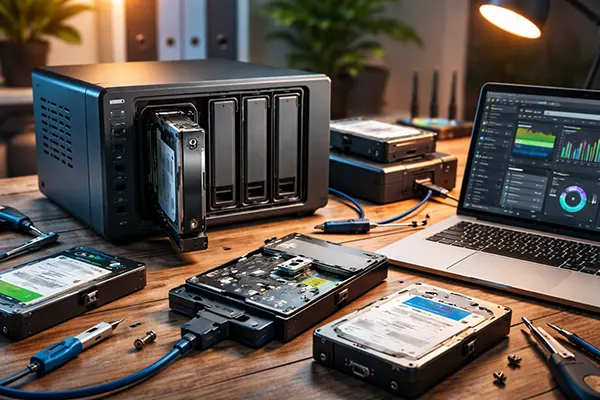
Tooling you can actually use at home: from built-in options to specialist RAID recovery software
Start with built-in capabilities because they are low-risk when used correctly. For deletion: check the NAS recycle bin settings (if enabled), snapshot restore points, and replication targets. For degraded arrays: check whether the NAS marked a disk “removed” due to a transient issue (power, backplane, cable) versus real media failure. Sometimes reseating a drive and rebooting is enough to re-detect it—but only do that after you’ve recorded the current state, because reboots can change which drives are considered “active”.
If you need deeper recovery, specialist software is what most home users and small IT shops reach for. Tools in this class typically let you: create disk images, detect vendor RAID layouts, assemble arrays virtually from images, and extract files to a safe destination. The key feature is working from images rather than stressing failing disks during repeated scanning and reconstruction attempts.
There are also cases where DIY should stop. If multiple disks are clicking, dropping, or throwing read errors, you’re in the danger zone where a home rebuild can finish the job (in the bad sense). If the data is valuable and you see signs of more than one failing drive, it can be cheaper to pause and use professional recovery than to “try a few things” and lose the last good reads. Home recovery works best when you keep actions reversible and you don’t push failing disks through heavy workloads.
A practical decision tree: which path to choose in the first hour
If a folder was deleted and the NAS is healthy: look for snapshots first; if you have them, restore into a new location and validate. If no snapshots exist, stop writes and plan recovery from images—deleted-file recovery gets worse with every write.
If the array is degraded but stable and only one disk looks bad: capture logs, check SMART, and image the risky disk first (or all disks if you can). Only after images exist should you consider replacing the disk and rebuilding/resilvering. If SMART is clean and logs suggest a disconnect (CRC errors, sudden drop), investigate seating/backplane before committing to a rebuild.
If the NAS is unstable, reboot loops, or multiple disks show errors: do not keep power-cycling. Prioritise creating images with controlled retries (or remove disks and image them in a workstation), then do reconstruction on copies. At that point, tools designed for RAID reconstruction and read-only extraction are usually safer than the NAS GUI, because you control every write and can roll back to your images.